
Two-Factor Authentication for Messaging Apps: A Step-by-Step Setup Guide
Your messaging account is only as secure as your login method. This complete guide walks you through enabling two-factor authentication on every major platform.
Why Your Password Alone Isn't Enough
In 2025 alone, over 4.7 billion credentials were exposed in data breaches. If your messaging app password was among them — or if you reuse passwords across services (as 65% of people do) — your private conversations, photos, and personal data are one login away from exposure. Two-factor authentication (2FA) adds a second barrier that makes unauthorized access nearly impossible, even with your stolen password.
What Two-Factor Authentication Actually Does
2FA requires two different types of proof to log in: something you know (your password) and something you have (a physical device that generates a temporary code). Even if an attacker obtains your password, they can't access your account without also having your phone or authentication device. It's the digital equivalent of a door that needs both a key and a fingerprint.
The Three Types of 2FA
SMS Codes (Good)
A text message with a 6-digit code sent to your phone number. This is better than no 2FA but is the weakest option — SIM swapping attacks can redirect your texts to an attacker's phone. Use this only if other options aren't available.
Authenticator Apps (Better)
Apps like Google Authenticator, Authy, or Microsoft Authenticator generate time-based codes on your device. These codes change every 30 seconds and work offline. An attacker would need physical access to your unlocked phone to get the code.
Hardware Security Keys (Best)
Physical devices like YubiKey or Titan Security Key that plug into your USB port or communicate via NFC. These provide the strongest protection and are virtually immune to remote phishing attacks. They're the gold standard for high-value accounts.
Step-by-Step: Setting Up 2FA on Your Messaging Apps
General Steps (Apply to Most Apps)
- Open the messaging app and go to Settings
- Navigate to Account or Privacy & Security
- Look for Two-Factor Authentication, Two-Step Verification, or Login Security
- Choose your preferred 2FA method (authenticator app recommended)
- If using an authenticator app: scan the QR code displayed on screen with your authenticator
- Enter the 6-digit verification code to confirm setup
- CRITICAL: Save your backup/recovery codes in a secure location (password manager or printed copy)
Critical Backup Steps Most People Skip
- Save recovery codes — if you lose your phone, these are your only way back in
- Set up a backup phone number — a trusted family member's number as a fallback
- Enable cloud backup in your authenticator app — Authy and Microsoft Authenticator both support encrypted cloud backup
- Don't use only SMS — it's the weakest link; pair it with an authenticator app if available
Common Mistakes to Avoid
- Sharing verification codes — no legitimate service will ever ask for your 2FA code. Anyone who does is attempting to hijack your account
- Screenshots of QR codes — these can be used to duplicate your authenticator. Delete any screenshots immediately after setup
- Relying on a single device — if your only 2FA device is your phone and you lose it, you're locked out. Always have backup codes stored separately
The Five-Minute Investment That Prevents Disaster
Setting up 2FA takes about five minutes per app. Recovering from a hacked messaging account — dealing with stolen personal data, impersonated conversations with your contacts, and potential identity theft — takes weeks or months. The math is clear. Stop reading this article, open your messaging app's settings, and enable 2FA right now. Future you will be grateful.

Writer & Editor at PigeonChat
Related Articles
What makes an end to end encryption chat app secure
What a fully compliant EU chat app should include
Why people search for a WhatsApp alternative without a number
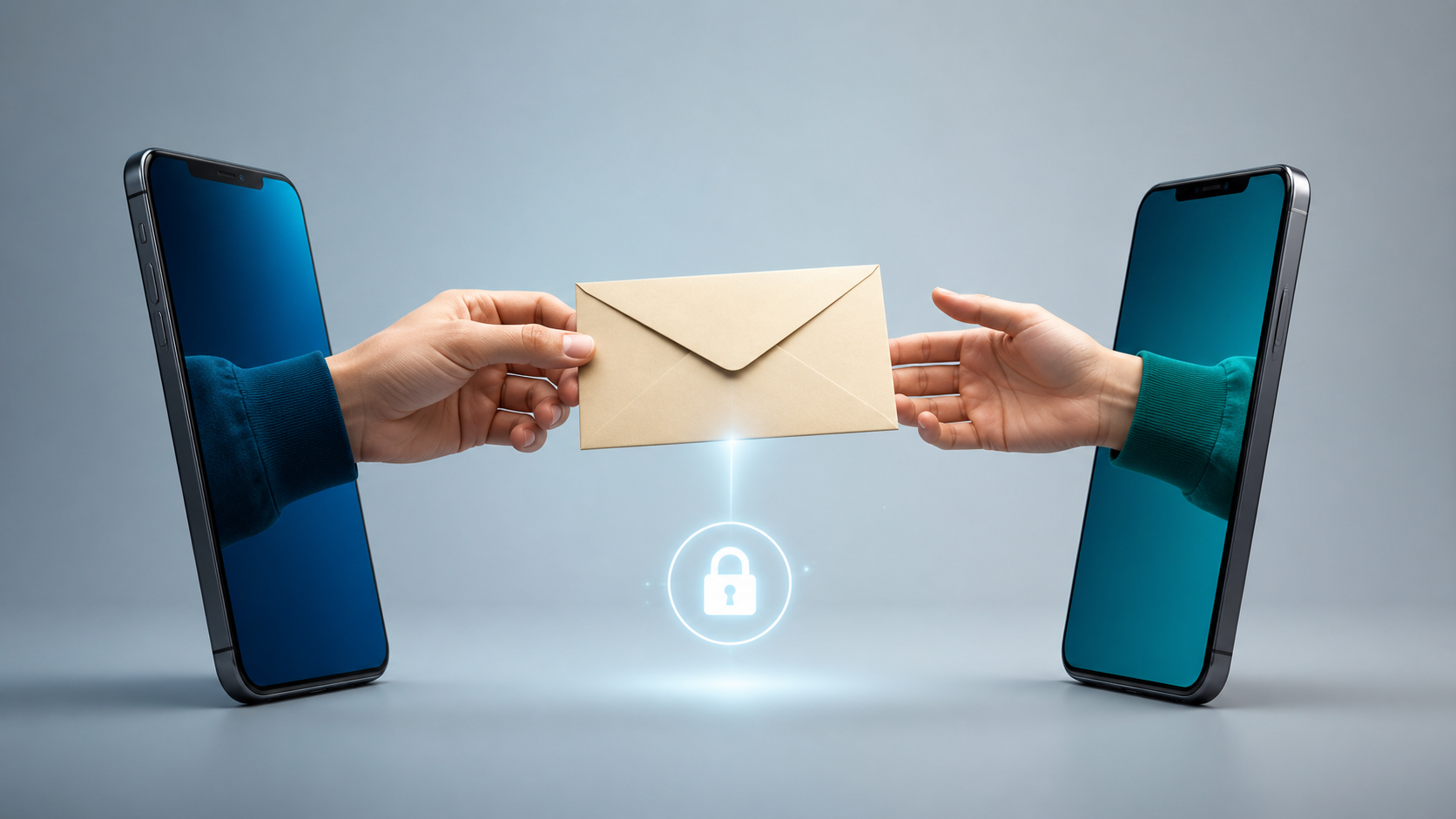
What end to end encryption chat really protects
Why chat folders matter for busy group conversations