
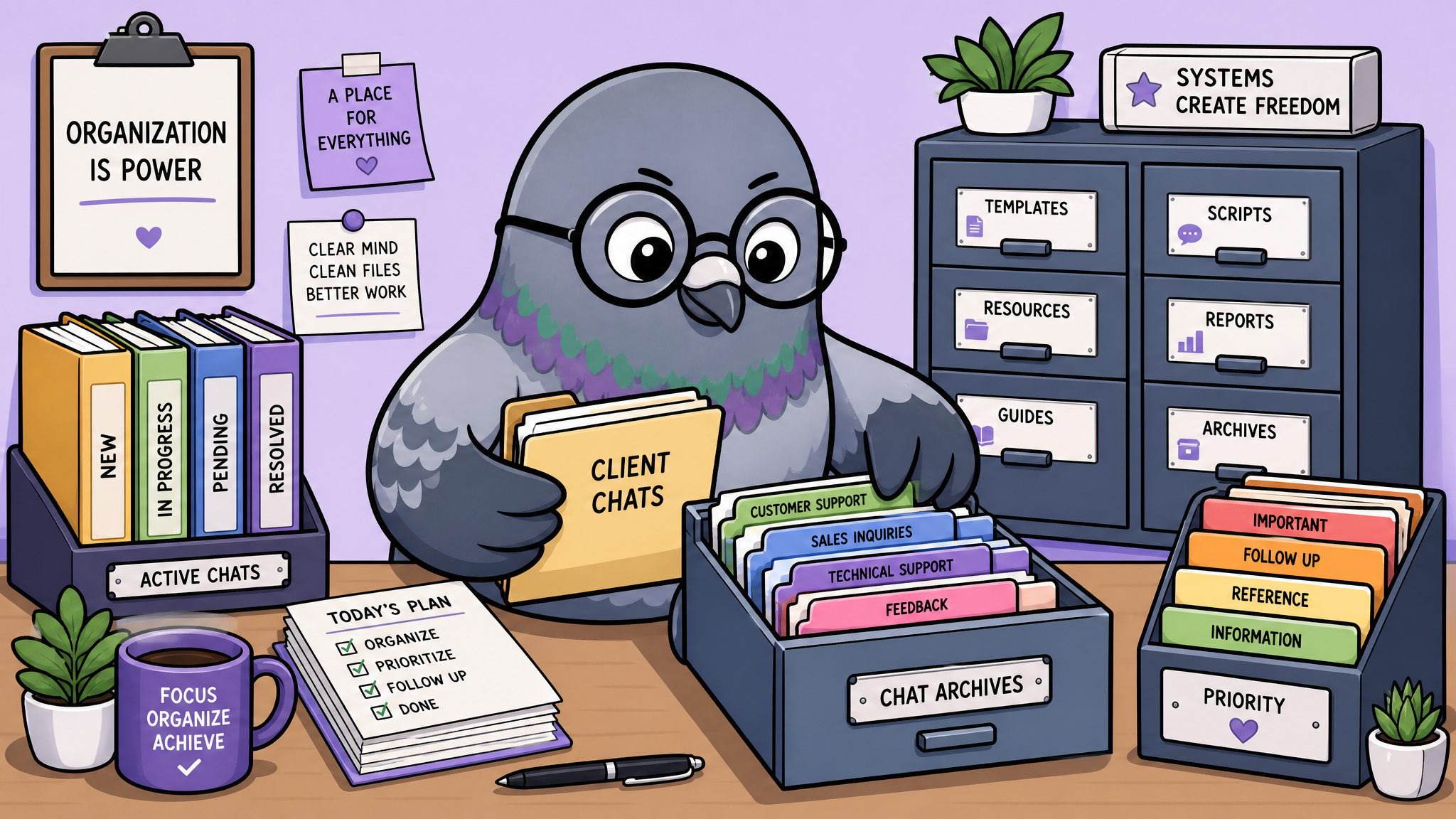
How to Organize and Archive Old Chats Like a Pro
Drowning in old conversations? Master the art of chat organization with these practical strategies for archiving, searching, and decluttering your message history.
The Digital Clutter Problem
Open your messaging app right now. Scroll down. How many of those conversations are active? How many are months-old threads you'll never reopen? How many are group chats from events that happened two years ago? If you're like most people, your chat list is a digital attic — packed with things you might need someday but can never find when you actually do.
Chat clutter isn't just an aesthetic problem. It slows down your ability to find important conversations, creates decision fatigue every time you open the app, and can even cause you to miss messages from people who matter because they're buried under a mountain of dormant threads.
Step 1: The Archive Audit
Start with a ruthless audit. Go through every conversation and place it in one of four categories:
- Active — Conversations you message in at least weekly. These stay in your main view.
- Periodic — Friends or groups you chat with monthly. These can be archived but should be easy to find.
- Reference — Conversations containing important information (addresses, booking confirmations, shared passwords) that you might need to search later.
- Dead — Inactive threads with no useful information. These get archived or deleted.
This audit alone will typically reduce your visible chat list by 60-70%.
Step 2: Master the Archive Function
Every major messaging app has an archive feature, yet most people never use it. Archiving doesn't delete a conversation — it simply moves it out of your main view. If someone in an archived chat sends a new message, it pops back into your main list.
Think of archiving as putting conversations in a filing cabinet. They're not gone; they're just not on your desk anymore. Use it aggressively for any conversation that doesn't need daily visibility.
Step 3: Pin What Matters Most
Most messaging apps let you pin up to 3-5 conversations at the top of your chat list. Use this feature strategically. Pin your partner, your family group chat, your best friend, or your work team — whoever you communicate with most frequently. Pinned chats are always instantly accessible, regardless of how many other messages come in.
Rotate your pins as your priorities change. Working on a group project? Pin it. Project done? Unpin and archive.
Step 4: Use Folders and Labels
Some messaging platforms, including PigeonChat, support chat folders or labels. This is the most powerful organizational tool available. Create folders like:
- Inner Circle — Your closest people
- Work — Professional conversations
- Groups — All group chats in one place
- Channels — Content and community channels
Folders transform a chaotic flat list into a structured system where everything has a place.
Step 5: Search Like You Mean It
Learning your messaging app's search capabilities can save you hours of scrolling. Most apps support searching by keyword, sender, date range, and media type. Instead of scrolling back months to find that restaurant recommendation, search for "restaurant" or "dinner spot" and find it in seconds.
Pro tip: when someone shares important information in a chat, use the "save" or "bookmark" feature if available. This creates a searchable collection of important messages you can access anytime without remembering which conversation they came from.
Step 6: Regular Maintenance Schedule
Organization isn't a one-time event — it's a habit. Set a monthly reminder to spend 10 minutes tidying your chat list. Archive newly dormant conversations, unpin completed projects, and delete any truly useless threads. This small investment keeps your messaging app clean and functional.
Step 7: Export Before You Delete
Before deleting any conversation permanently, consider whether it contains information or memories you might want later. Export important chats as text files or PDFs. Many apps offer built-in export features that save the full conversation including timestamps, media links, and participant names.
Store exports in a dedicated folder on your device or cloud storage. Label them clearly: "Trip Planning - Italy 2025" is searchable; "Chat Export 3" is not.
Managing Group Chat Overload
Group chats are the biggest source of chat list bloat. Be honest with yourself: if a group chat has been silent for three months, archive it. If a temporary group (event planning, project collaboration) has served its purpose, leave it entirely. There's no obligation to remain in every group you've ever been added to.
For groups you want to stay in but don't need constant updates from, use the mute function. Muted groups don't generate notifications but remain accessible when you want to check in.
The Clean Chat List Mindset
A clean, organized chat list isn't about being obsessively tidy. It's about reducing friction in your daily communication. When you open your messaging app and immediately see the people and conversations that matter most — without visual noise from dead threads and dormant groups — you communicate more efficiently and with less stress. Your messaging app should feel like a well-organized workspace, not a cluttered junk drawer.

Writer & Editor at PigeonChat
Related Articles
Why chat folders matter for busy group conversations

How image sharing works in private chat apps

What chat features users expect in modern private apps

Why chat folders help busy groups stay organized

How chat groups help schools and universities stay organized