
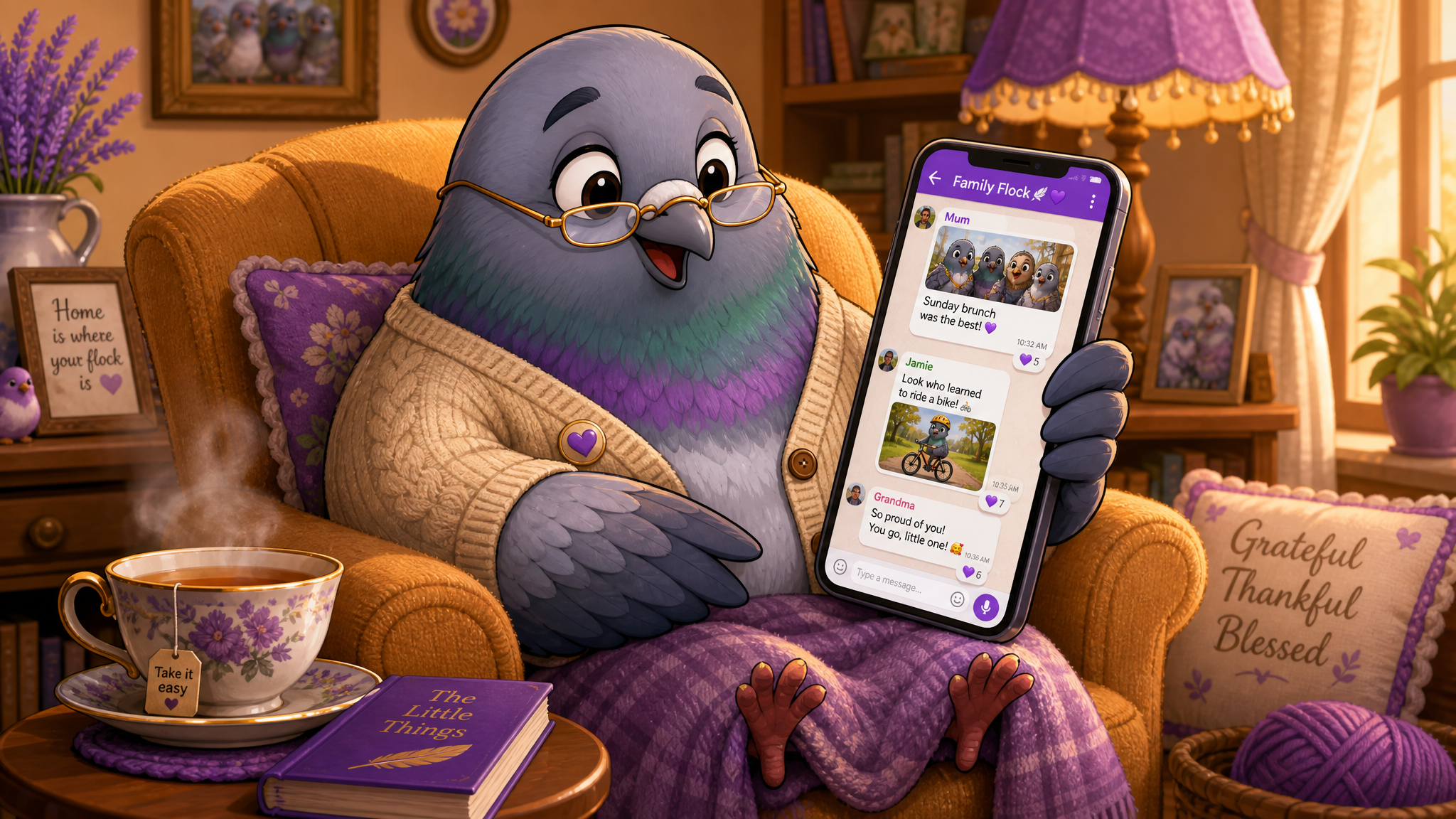
Messaging for Seniors: A Beginner-Friendly Guide to Staying Connected
A warm, step-by-step guide for older adults new to messaging apps — from setup and typing tips to emojis, group chats, safety practices, and making messaging a joyful daily habit.
You're Never Too Late to Join the Conversation
If you've ever felt like messaging apps are a young person's game, you're not alone. Many seniors feel intimidated by the rapid pace of digital communication, confused by unfamiliar interfaces, and uncertain about privacy and security. But here's the encouraging truth: messaging apps are simpler than they appear, and the benefits they offer — staying connected with family, maintaining friendships, and accessing information — are genuinely life-enhancing.
This guide is written specifically for older adults who are new to messaging or want to get more comfortable with it. We'll walk through everything step by step, in plain language, with practical tips that make messaging feel natural rather than overwhelming.
Why Messaging Matters More Than You Think
Social isolation is one of the most significant health risks facing older adults. Research from the National Institute on Aging links social isolation to increased risk of heart disease, depression, cognitive decline, and even premature death. The health impact of loneliness is comparable to smoking 15 cigarettes a day.
Messaging apps directly combat this isolation by making it effortless to stay in touch with the people who matter most. Your grandchildren can share photos from their school play. Your old college friend three states away can tell you about their garden. Your neighbor can check in on you after a storm. These connections, however small they seem, have measurable positive effects on health and well-being.
Unlike phone calls, which require both people to be available at the same time, messages wait patiently until you're ready to read and respond. There's no pressure to answer immediately, no awkwardness about calling at a bad time, and no need to worry about remembering everything that was said — because the conversation is right there in writing, available for you to revisit anytime.
Choosing the Right Messaging App
The first decision is which app to use, and the best answer is simple: use whatever your family and friends use. If your grandchildren are on one platform, that's the one worth learning. The whole point is connection, and connection happens where the people you love already are.
That said, some apps are more senior-friendly than others. Look for these features when choosing: large, clear text that's easy to read. Simple navigation with clearly labeled buttons. Voice message capability for when typing feels cumbersome. Video calling built into the same app. Strong privacy settings to keep your information safe.
PigeonChat, for example, is designed with accessibility in mind — clean interface, intuitive navigation, and features that make communication easy regardless of your technical comfort level.
Getting Started: Your First Steps
Step 1: Download the app. On your phone, open the App Store (iPhone) or Play Store (Android). Search for the app name and tap "Install" or "Get." The app will download and appear on your home screen. If you're unsure how to do this, ask a family member to help with this one-time setup — there's no shame in asking, and most people are happy to help.
Step 2: Create your account. Most apps ask for your phone number and name. Enter these details and follow the prompts. You'll usually receive a verification code via text message — enter this code when prompted. Choose a clear, recent photo of yourself as your profile picture so your contacts can easily identify you.
Step 3: Add contacts. Many messaging apps will automatically find contacts from your phone's address book who also use the app. You can also add people manually by entering their phone number. Start by adding two or three people you communicate with regularly — a child, a close friend, a sibling.
Step 4: Send your first message. Tap on a contact's name, then tap the text field at the bottom of the screen. Type your message using the on-screen keyboard, then tap the send button (usually an arrow icon). Congratulations — you've just sent your first message!
Typing Made Easy: Tips for Comfortable Messaging
Many seniors find the small on-screen keyboard challenging. Here are solutions that make typing much easier:
Increase your text size. Go to your phone's Settings, find Display or Accessibility, and increase the font size. This makes the keyboard letters and all text throughout your phone larger and easier to read.
Use voice-to-text. Most phones have a microphone icon on the keyboard. Tap it and speak your message — the phone will convert your speech to text. This is often faster and easier than typing, especially for longer messages. Speak clearly and at a normal pace for best results.
Send voice messages. Even easier than voice-to-text, most messaging apps let you record and send voice messages. Press and hold the microphone button in the chat, speak your message, and release to send. The recipient hears your actual voice, which adds a personal warmth that text alone can't match.
Don't worry about typos. Auto-correct will fix most mistakes, and your contacts won't judge you for the occasional typo. The joy of receiving your message far outweighs any concern about perfect spelling.
Use predictive text. As you type, suggestions appear above the keyboard. If the word you want appears, simply tap it instead of typing the whole word. This speeds up messaging significantly once you get used to it.
Understanding Emojis: The Fun Part
Emojis are those small colorful pictures you can add to messages — smiley faces, hearts, thumbs up, flowers, and hundreds of others. They add emotion and personality to your messages, and they're fun to use once you get the hang of them.
To access emojis, look for a smiley face icon on your keyboard, usually next to the space bar. Tap it to see the emoji keyboard. You can scroll through categories or search for specific emojis by typing a word (like "heart" or "smile").
Start with a few favorites: 😊 (smiling face) for friendly messages, ❤️ (red heart) for expressing love, 👍 (thumbs up) for agreement, and 😂 (laughing face) for when something is funny. You don't need to use them in every message — think of them as seasoning, not the main course.
A tip that many seniors find helpful: you can respond to someone's message with a single emoji reaction (in many apps, press and hold on a message to see reaction options). A quick ❤️ reaction on a grandchild's photo lets them know you saw it and loved it, without needing to type anything at all.
Photos and Videos: Sharing Your World
One of the greatest joys of messaging is sharing photos and videos. Your garden in bloom, your cat doing something silly, a beautiful sunset from your porch — these everyday moments become gifts when shared with people you love.
To send a photo in most messaging apps: tap the attachment icon (usually a paperclip or plus sign) in the chat, select "Photo" or "Gallery," choose the photo you want to send, and tap send. You can also take a new photo directly within the messaging app by selecting the camera option.
Receiving photos is even simpler — they appear right in the conversation. Tap on a photo to see it full-screen, and pinch to zoom in on details. Most apps also let you save received photos to your phone's gallery by pressing and holding the image and selecting "Save."
Video calls are another wonderful feature. Most messaging apps include a video call button (usually a camera icon) at the top of any conversation. Tap it, and you're face-to-face with your contact, seeing their smile and showing them yours. It's the closest thing to being there in person.
Group Chats: Staying Connected with Everyone
Group chats allow you to communicate with multiple people at once — perfect for family conversations, friend circles, or community groups. When you send a message to a group, everyone in it sees your message and can respond.
Family group chats are particularly popular among seniors. They provide a single place where everyone shares updates, photos, and plans. Instead of calling each family member individually to share news, you post it once and everyone sees it. You can follow the conversation at your own pace, catching up whenever it's convenient.
If a group chat is too active and notifications become overwhelming, don't worry — you can mute it. Muting means messages still arrive, but your phone won't buzz for each one. You can check the chat when you're ready rather than being interrupted constantly. Look for a "Mute" option in the group chat settings.
Staying Safe: Privacy and Security Basics
Safety is a legitimate concern, and it's smart to take precautions. Here are the essential safety practices for messaging:
Never share financial information through messaging. Your bank, government agencies, and legitimate businesses will never ask for passwords, PINs, or account numbers through a messaging app. Any message requesting this information is a scam, regardless of who it appears to be from.
Don't click suspicious links. If you receive a message with a link from someone you don't know — or an unusual link from someone you do know (their account may be hacked) — don't tap it. When in doubt, call the person directly to verify they sent it.
Keep your app updated. Updates often include security improvements. When your phone notifies you of an available update for your messaging app, install it.
Use a strong lock screen. A PIN, fingerprint, or face recognition on your phone prevents unauthorized access to your messages if your phone is lost or stolen.
Be cautious with strangers. If someone you don't recognize messages you, exercise the same caution you would with a stranger at your door. It's perfectly acceptable to ignore or block messages from people you don't know.
Troubleshooting Common Issues
"Messages aren't sending." Check your internet connection. Make sure Wi-Fi is connected or mobile data is turned on. Try closing and reopening the app. If problems persist, restart your phone.
"I can't find my conversation." Use the search function (usually a magnifying glass icon) at the top of the app and type the person's name. Your conversation will appear in the results.
"The text is too small." Increase the font size in your phone's settings under Display or Accessibility. Many messaging apps also have their own text size settings within the app.
"I accidentally deleted a chat." Most messaging apps keep your conversations backed up. Check the app's settings for backup and restore options, or ask a tech-savvy family member to help.
"Someone keeps messaging me and I don't want them to." Every messaging app has a block feature. Open the conversation, tap on the contact's name or the menu icon, and look for a "Block" option. Once blocked, they can no longer send you messages.
Making Messaging a Daily Habit
The best way to get comfortable with messaging is to use it regularly. Set a small daily goal: send one message a day to someone you care about. It doesn't have to be lengthy or profound — "Good morning! Thinking of you" or "Look at this beautiful bird in my yard" or even just a heart emoji are all perfect messages that will brighten someone's day and strengthen your connection.
As messaging becomes part of your routine, you'll find it increasingly natural and enjoyable. You'll develop your own style — maybe you'll become the family member who always sends morning greetings, or the friend who shares the best sunset photos, or the grandparent whose voice messages are everyone's favorite.
Welcome to the Conversation
Messaging isn't about keeping up with technology — it's about keeping up with the people you love. Every message you send and receive is a small act of connection in a world that sometimes feels disconnected. And that connection, at any age, is one of the most valuable things in life.
So go ahead. Open that app. Send that message. Join the conversation. Your people are waiting to hear from you. 💙

Writer & Editor at PigeonChat
Related Articles

Why people search for a pigeon chat app online

Why users search for a pigeon chat app online

Why people call pigeons a messaging app joke
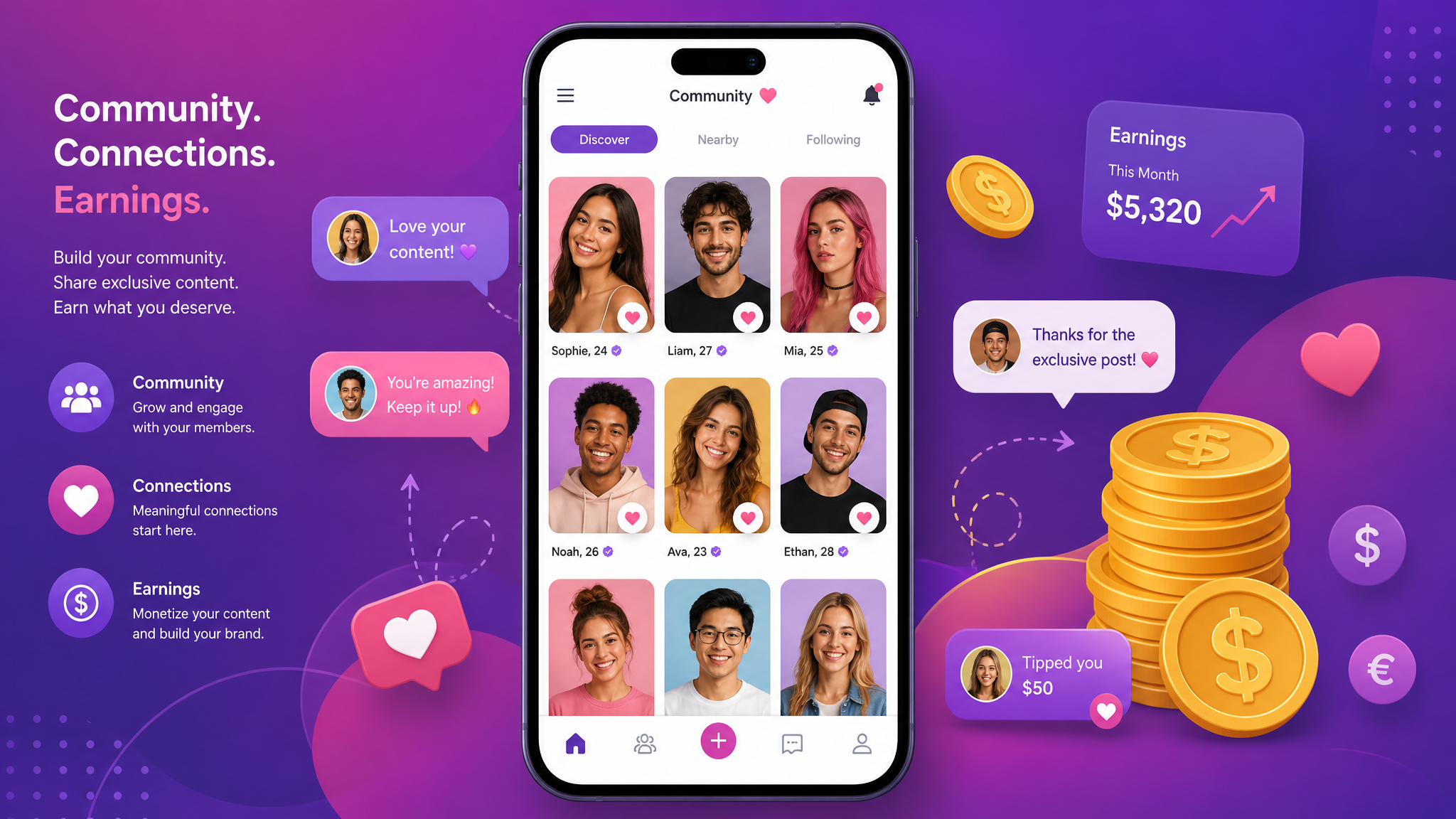
Dating, Community & Making Money on PigeonChat.site
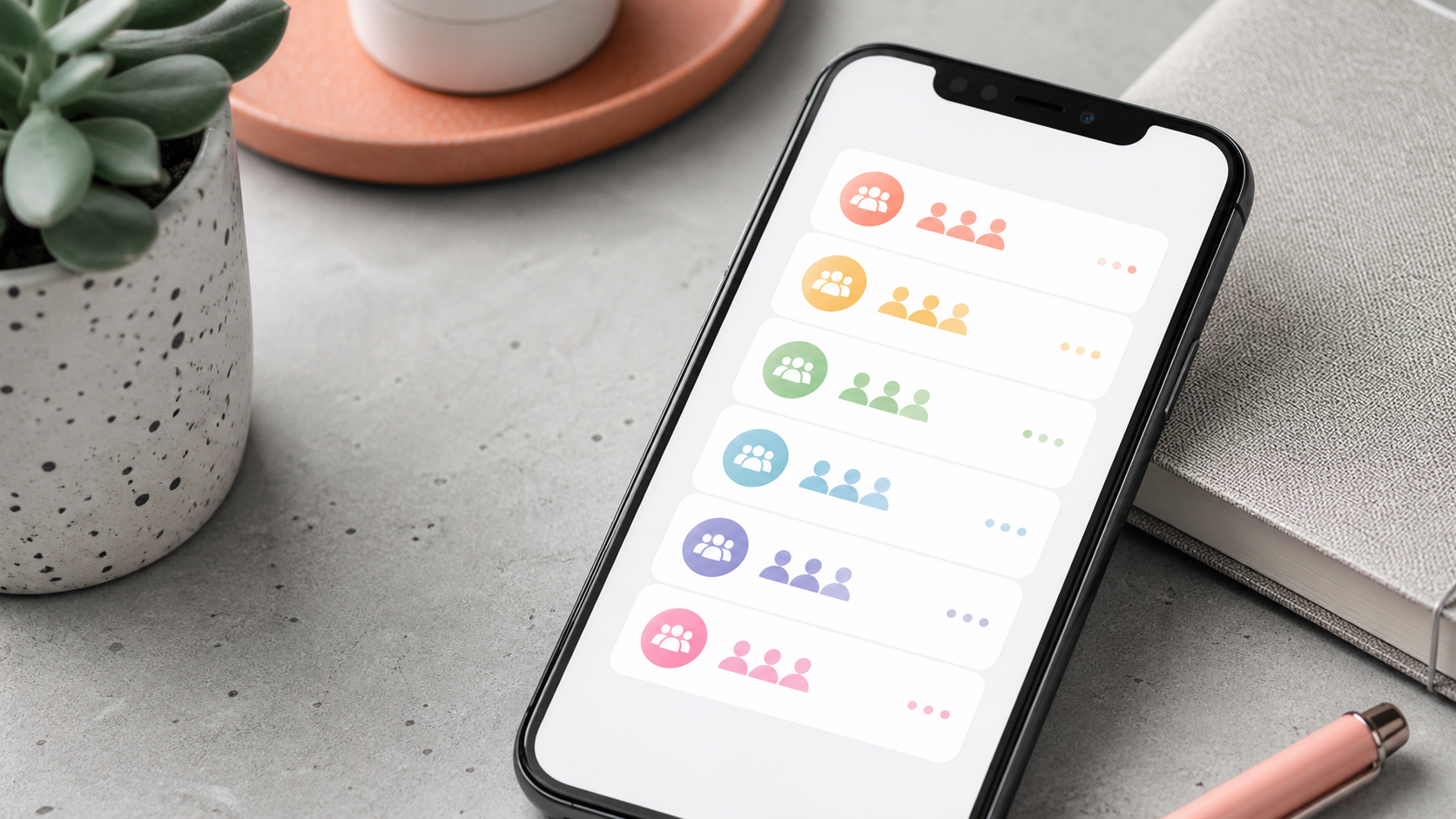
Why chat folders matter for busy group conversations