
How to Handle Multiple Chats at the Same Time Without Losing Your Mind
Drowning in conversations? Learn how to organise, prioritise, and manage multiple chats at once using pinned chats, notification controls, and smart chat organisation strategies.
You've got 14 active conversations: three group chats, your partner, your mum, a work channel, a project thread, a friend making dinner plans, and six more you haven't opened yet. Your notification badges look like a scoreboard. Sound familiar?
Knowing how to handle multiple chats at the same time isn't just about speed — it's about chat organisation that keeps you sane while staying responsive to the people who matter.
Why Chat Overload Happens
The average messaging app user in 2026 juggles 8–15 active conversations simultaneously. Add group chats (which multiply messages exponentially), work channels, and community groups, and you're looking at hundreds of messages a day.
The problem isn't the volume — it's the lack of organisation tools. Most messaging apps present all conversations in a single flat list, sorted by most recent message. This means the most active group chat (usually the least important) always sits at the top, burying the message from your boss or your partner.
Strategies for Managing Multiple Chats
1. Pin Your Priority Conversations
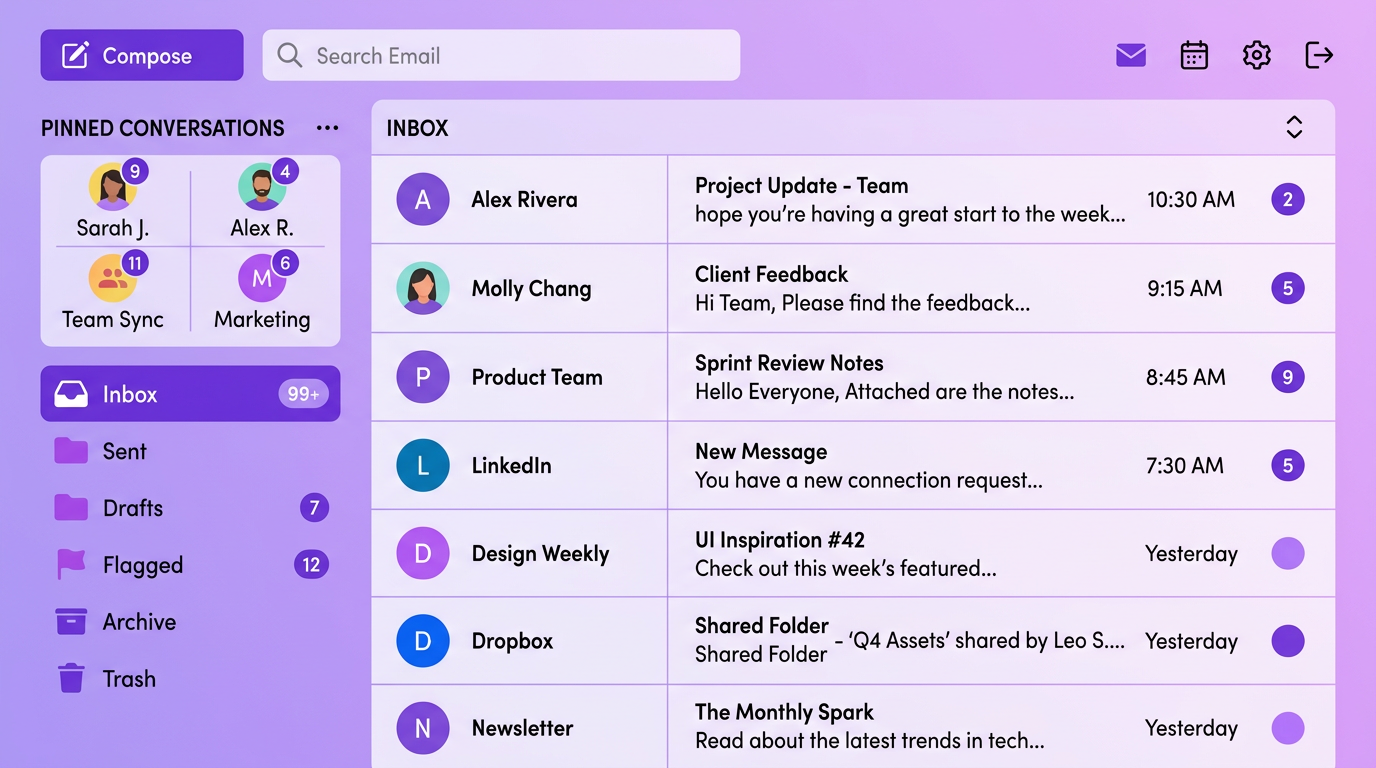
Pinned chats are the single most effective chat organisation tool available. Pin the 3–5 conversations that genuinely matter — your partner, your closest friend group, your direct manager, your project team — and they'll always be visible at the top of your chat list, regardless of what's happening in other groups.
Most modern messaging apps support pinned chats. PigeonChat lets you pin conversations and access them instantly from the top of your chat list.
2. Master Notification Settings
Not every conversation deserves an audio alert. Effective messaging notification management means:
- Mute noisy group chats but keep them accessible when you want to check in.
- Set priority contacts whose messages always ring through, even on silent mode.
- Use notification previews wisely — disable previews for sensitive chats, keep them for casual ones.
- Schedule notification hours — no work chat alerts after 7pm, no social chat alerts during meetings.
3. Use Channels for Topics, Not Megagroups
If you're in a community or team, push for channel-based organisation instead of one enormous group chat. A single group with 50 people discussing five different topics is chaos. Five channels with 50 people each discussing one topic is manageable.
4. Batch Your Responses
The research is clear: constant context-switching between conversations reduces your cognitive performance. Instead of responding to every message as it arrives, batch your responses into 2–3 dedicated "messaging windows" per day. Check chats, respond to everything important, then close the app.
5. Archive Completed Conversations
That group chat for planning last weekend's event? Archive it. The thread about a project that finished two weeks ago? Archive it. Keeping dead conversations in your active list adds visual noise and makes it harder to find what matters.
6. Search Instead of Scrolling
Stop scrolling through 500 messages to find that one link someone shared. Use your app's search function. PigeonChat's search lets you find messages, files, links, and media across all conversations instantly.
How PigeonChat Helps You Stay Organised
- Pinned chats — pin your most important conversations to the top.
- Granular notifications — customise alerts per conversation, set schedules, mute freely.
- Channels — organise communities and teams into topic-specific channels.
- Powerful search — find any message, file, or link across all your chats.
- Read receipts you control — reduce the pressure to respond immediately.
- Reactions — acknowledge a message without adding to the noise.
You don't need fewer chats. You need better tools to manage them. Try PigeonChat and take control of your conversations.

Writer & Editor at PigeonChat
Related Articles
Why chat folders matter for busy group conversations

How image sharing works in private chat apps

What chat features users expect in modern private apps

Why chat folders help busy groups stay organized

How chat groups help schools and universities stay organized